The lazy load script is a great way to save bandwidth and load your pages much faster. Images that are not visible on the initial page load are not loaded or downloaded until they come into the main viewing area. Once an image comes into view it is then downloaded and faded into visibility. Scroll down this page to see the script in action.
Setup is very easy! By default this script is disabled, in order to enable it simply choose All Images or Individual Images from the drop down, as shown below from inside the template configuration page.
All images will load every standard image on the page with lazy load. There is no extra configuration or extra code to add with this configuration, it will just happen automatically. Individual images would be used if you want only certain images to load with this script and not all of them. To do this simply add class=”s5_lazyload” to the image like so:
The info slide script is a great way to display your content to your customers! It will place a sliding text box over any image on the page. It can be placed inside of content or modules. It will also automatically adjust to any size screen size on window resize. See below for a demonstration. In the backend of Vertex you can pick between a javascript only version or a pure css version.
One of the biggest obstacles to overcome when designing a responsive layout site is that not all content, images and extensions were designed to work with responsive layouts. That means that sometimes you need the ability to hide a specific element on only certain sized screens, so that something doesn’t break the site’s layout and everything looks proportionate. We’ve made that all possible and very easy to do for you with hiding classes! There are three main ways to hide content on different size screens, and they are documented below. Please note that these classes are only enabled when the responsive layout is enabled.
Hide Sections of the Template via the Template Configuration
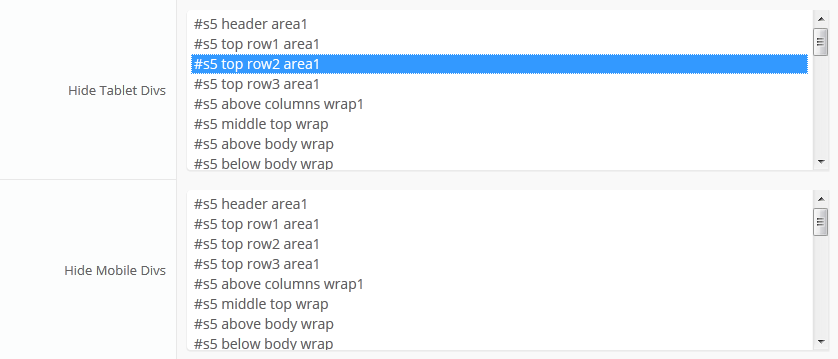
This is the simplest way to hide an area of the template is to use the template interface to easily select areas of the template that you want to hide on tablet sized screens (970px and less) or mobile screens (580px or less). Simply select the area that you want to hide and the Vertex framework takes care of the rest! These fields do work independent of each other, so if you want to hide something on both tablet and mobile sized screens you must select the same area on both fields.
IMPORTANT – If you turn off a column position such as right or right_inset something else must be in the same column or the layout will not work. For example you can turn off right_inset and keep right, but you cannot turn off both unless something is publihsed to right_top or right_bottom as well.
Hide Specific Modules via the Hide Classes
If you have only a specific module that you would like to hide at certain screen sizes, and not an entire section of the template, this is the best approach. A hide class is a class that can be applied to any element on the page and hides that particular element at certain screen sizes. Classes range in 100px increments for large screens and 50px increments for small screens. Below are some examples, and at the very bottom of this page there is a list of all the available hide classes. Use these sparingly if you can. As a recommendation, the primary target of these classes should focus on tablet and mobile sized screens. Wide screen monitors vary in size so it’s much harder to use these classes correctly for large monitors. Tablet and mobile devices are much more consistent in size so it is much easier to apply the smaller hide classes.
For example, say you want to hide a specific module when the screen sizes reaches 900px wide, and remain hidden for any screen below 900px. Simply add class=hide_900 to the title of the module like this:
The class is simply put into the title of the module. There must be a space just before class= , and don’t worry, the class area of the title won’t actually show on the live site, it’s only shown in the backend. It must be entered exactly as shown above. The title can be published or unpublished, it does not matter which. Simply adding the classes to the title will apply the classes to the entire module.
What if you want it to hide the module only for a certain range? That’s easy just add _only to the end of the class name. hide_900_only will only hide that element from 900px to the next increment in the hide classes, which is 850px. So it will only be hidden from 850px to 900px. You can also add multiple classes to the title like this class=hide_900_only hide_850_only which will apply both classes to the module.
What if you want to hide the module and then show it again later? That’s simple, use show_ in the class instead of hide_. This will make the module show for the specified size no matter what other settings are on the module. So if you want to hide the module from 1000px and below, but you want to show it again later then do something like the following class=hide_1000 show_600. This will hide the module from 600px to 1000px.
Is there a more simple way? Yes, of course, the above directions are for experienced users who want to tweak their content for every available screen size. If you don’t want to mess around with specific window sizes simply use the following classes instead, which have preset screen sizes applied to them:
Why would someone use hide_all? This is a great tool for anyone wanting to show content only on a mobile or tablet sized screen but hide it on all other devices. To do this you should use class=”hide_all show_mobile”. The hide_all will set the content or module to display:none on all devices, and one the screen size reaches mobile size the show_mobile will override the display:none and show the content.
Hide Specific Content via the Hide Classes
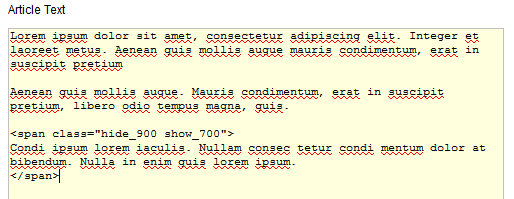
If you have only specific content or images within an article or module that you want to hide then use the same hide classes described above, but wrap that specific content inside of the class instead of applying it to the entire module. For example, in the image below, the third paragraph will hide at 900px and then show again at 700px.
Available Hide Classes
All the available hide classes are listed below. Note there is a break at 970px and 580px to accommodate tablet and mobile sized screens. At the bottom of the list you will see inline calls, these calls should only be used if the default block calls cause a layout problem with your content, which can happen with applying a display:block.
/* THE INLINE SHOW CALLS BELOW SHOULD BE USED SELDOMLY. THEY SHOULD ONLY BE USED
IF THE BLOCK SHOW CALLS ABOVE CAUSE A LAYOUT ISSUE WHEN TRIGGERED.
———————————————————– */
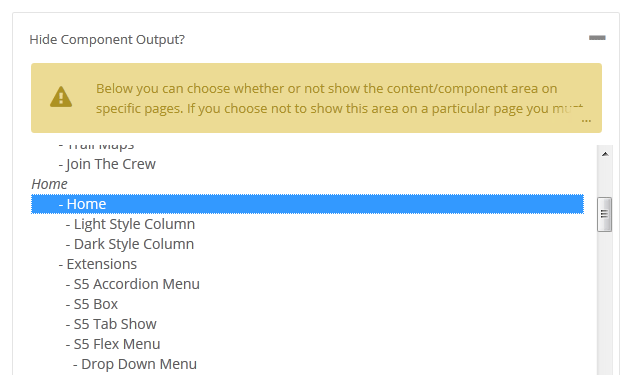
Did you ever need to create a page where this is no article present or no component to be shown, and only load modules? This template makes it all possible! From the template configuration page you can hide the main content area on any page on the site.
Below is a screenshot of this function from the configuration page, found under the General tab:
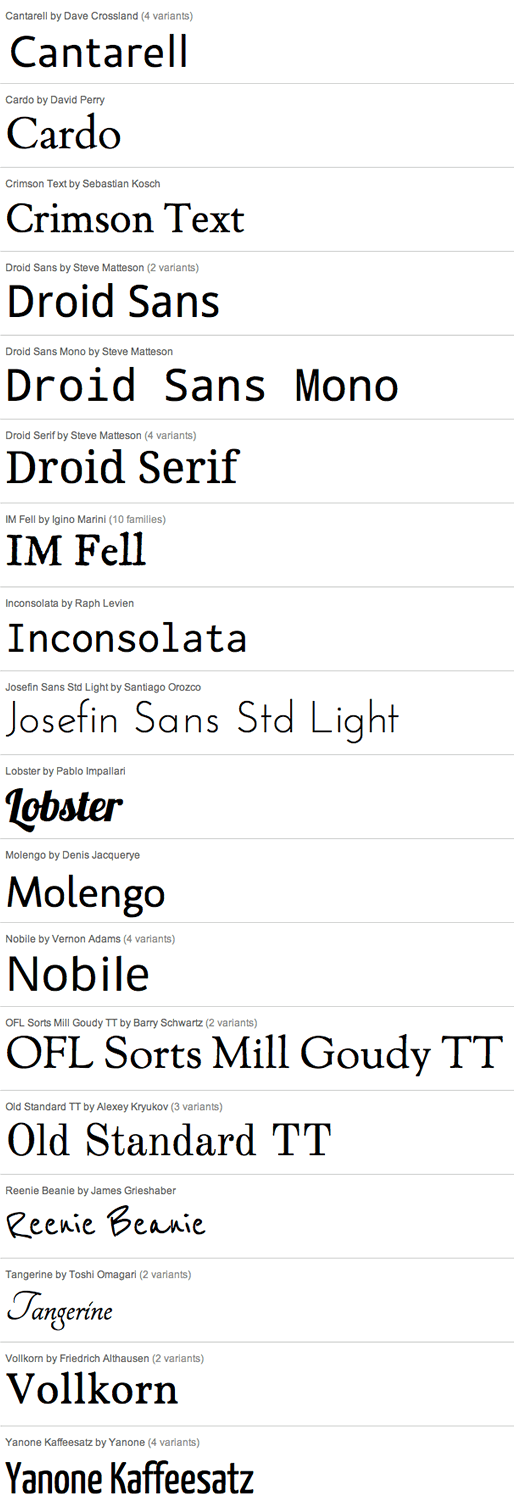
Do you want your own custom font? Not a problem, this template comes with Google Fonts enabled, allowing you to pick from hundreds of font families for your website. In the template parameters area of the template you can choose your own custom font, and preview it from the Vertex interface. Below are some examples of the fonts available.
This template includes a “Fixed Tab” option that you can enable and publish on your site and will show in a fixed position on either the left or right side of the screen. The great feature about the fixed tabs is that you can enter any text you desire and the text is automatically flipped vertically! This is great for search engines to read your text and also saves the hassle of creating an image with vertical text and placing it on the side of your site. The tabs are published site wide and can have the following options that can be changed via the template parameters area and can link to any URL that you desire.
The following is a quick list of features:
Change background to any hex color
Change the border to any hex color
Change the font to any hex color
Set vertical position of each tab
Set the height of each tab
Set each tab to either the left or right of the screen
Add a class to each fixed tab to enable s5 box or perhaps a lightbox or other 3rd party extension
Add a URL to each fixed tab so onclick the URL loads
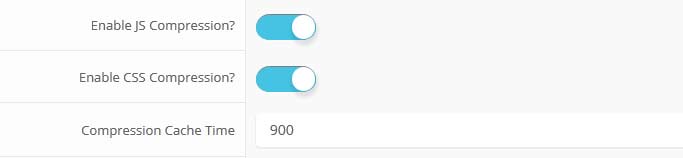
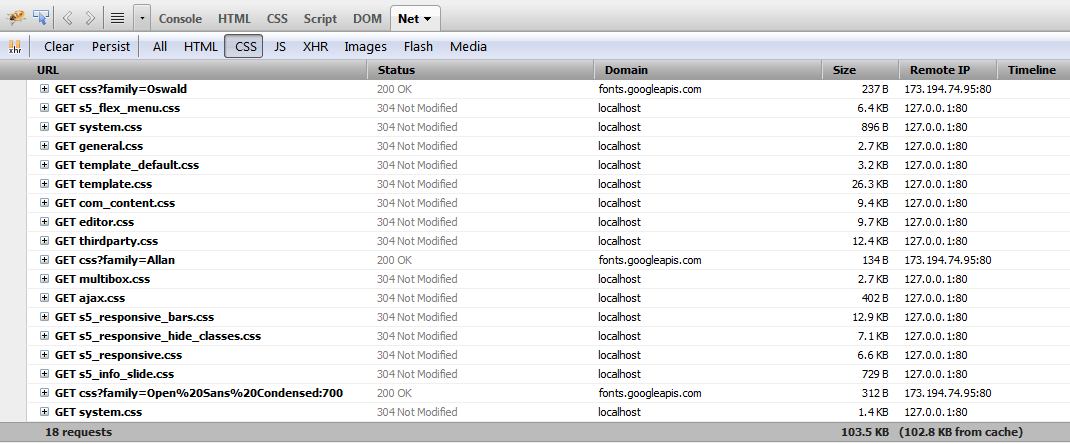
Increase speed and performance by compressing core template CSS and Javascript files to much smaller sizes than the original! Enabling compression is a great way to boost your site’s performance. It simply combines css and js into consolidated files. This reduces the downloads sizes and reduces the numbers of calls to your server, to dramatically help your site’s overall performance. No data is lost during this process, just simply made smaller. Please note that this compression will only compress core template files, not third party files or files from extensions.
Note: Because this feature uses cached versions of your javascript and css this plugin should not be used while developing your site and should only be enabled after you have completed your site.
Gzip must be installed on your server and enabled in PHP in order to function.